Access and roles#
Two colleagues can sign in to the same Carrotz and see completely different menus. That isn’t a fault — it’s access control doing its job.
Getting access for the first time#
Is your organisation new to Carrotz? Contact Carrotz to have the first user created.
Joining an organisation that already uses Carrotz? Your administrator invites you — the invitation is sent from the admin page in the desktop version. You don’t create an account yourself.
Once the first user exists, they can invite the rest of the team.
Three user types#
| User type | What it means |
|---|---|
| Admin | Can configure the system and manage other users’ access |
| Superuser | Extended rights, but not full administration |
| Regular user | Has exactly the permissions the administrator has granted |
The user type is only the broad distinction. The fine-tuning happens in the permissions.
Permissions are granular#
The administrator grants access to individual features for individual users, organised by domain:
- General
- Locations
- Objects
- Work orders
- Work routines
- Maintenance plans
- Cases
- Document management
- Inventory
- Projects and time registration
- Risk assessment
For each domain, what the user can view, create, edit and delete is controlled separately.
This means “regular user” can mean very different things from person to person — a field user and a supervisor have the same user type but entirely different permissions.
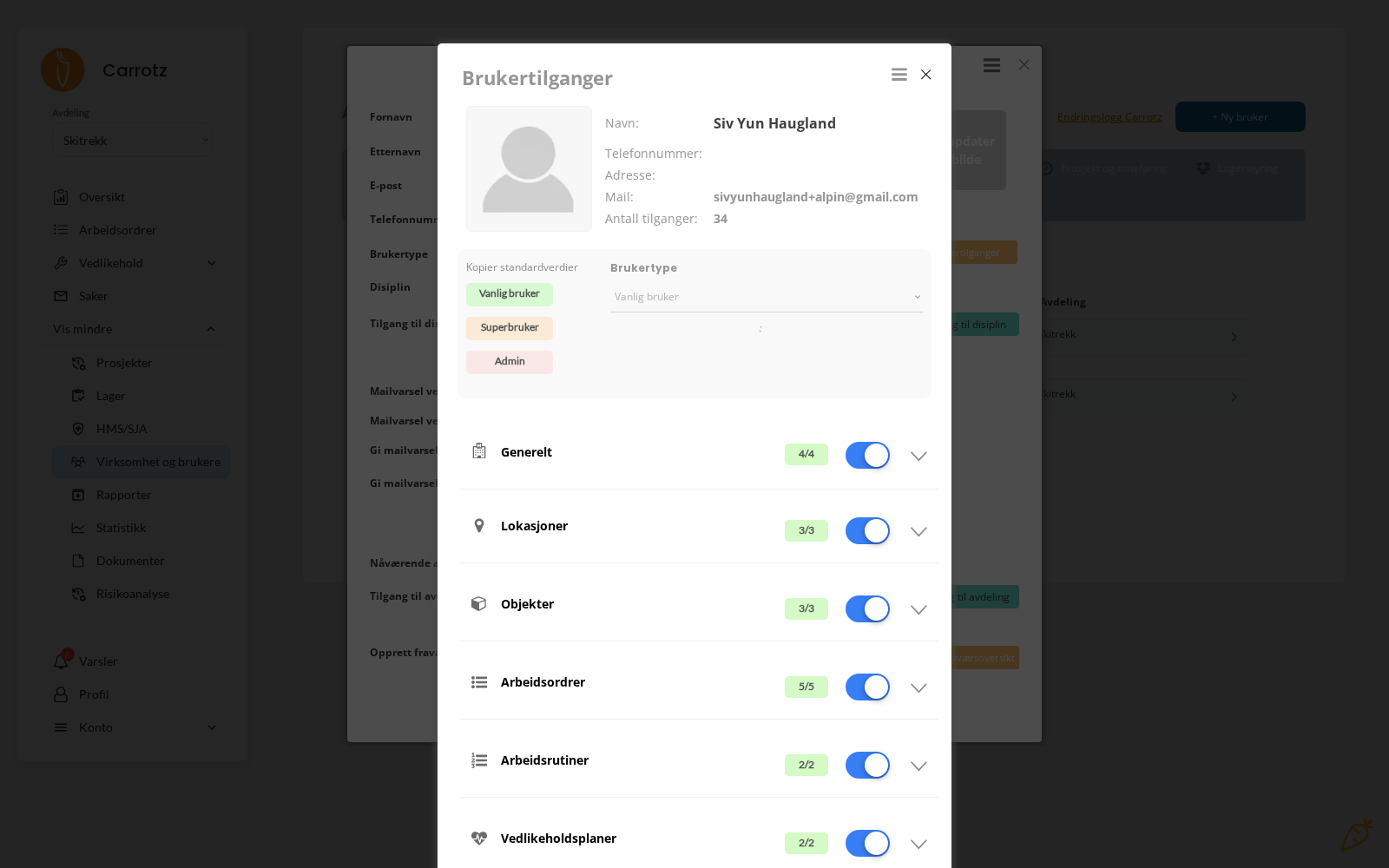
Inside the permission view there is a “Copy default values” function that fills in the standard setup. Start there and adjust, rather than setting each permission by hand.
Discipline — and why you can have several#
Your discipline is your trade. You have one main discipline, and can additionally be linked to up to four more — five in total.
- The main discipline governs your time registration — that is the rate used
- The others govern what you get to see
If the system is set up so that you only see work orders for your own disciplines, you now see work for all the disciplines you are linked to. If you work across trades, it is worth asking your administrator to add the second discipline — otherwise you miss jobs you are meant to do.
Departments — and how to switch#
A user can have access to several departments, but sees one at a time.
If you have access to more than one, you switch:
- Desktop: at the top of the sidebar
- Mobile: from the menu on the app’s home screen
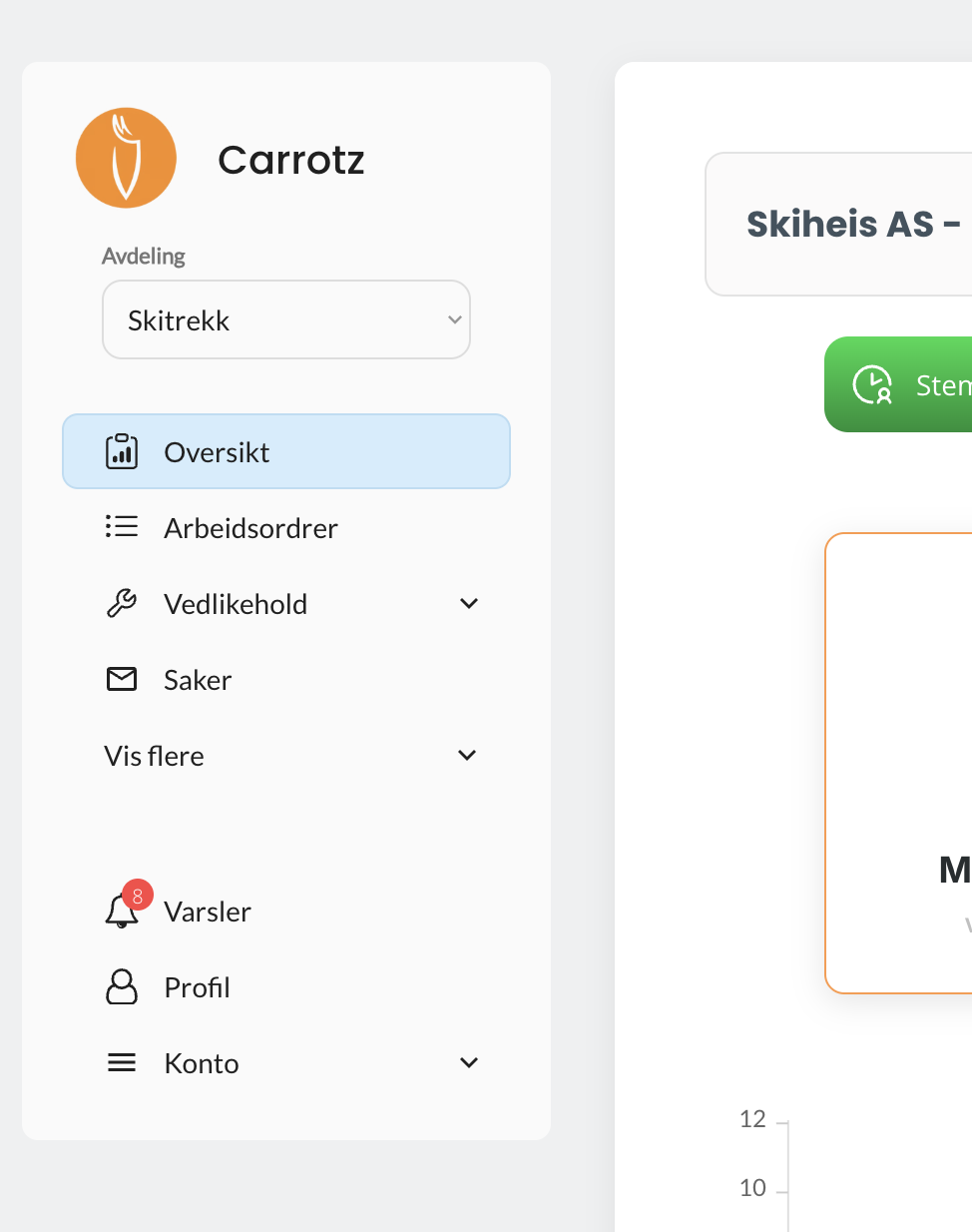
This is the most common explanation when someone “can’t find” a work order or an object: it is in a different department from the one you are currently in. Check which department is active before you keep looking.
“I can’t find the menu described here”#
Work through this order:
- Are you in the right department? See above.
- Are you on the right platform? Setting up locations, objects, plans, checklists, inventory, users and settings works only on a computer. See Desktop and mobile.
- Do you have access to the feature? Your administrator can see and change your permissions.
- Is the feature enabled for your organisation? Not every company has every module — inventory, for example, depends on the package.
Roles in practice#
Beyond the three user types, this documentation describes three working patterns:
| Pattern | Typical responsibility |
|---|---|
| Field user | Carries out work orders, checklists, deviations and hours |
| Planner / supervisor | Distributes work, follows up deadlines and approvals |
| Administrator | Sets up the structure and manages users and permissions |
The first two are both “regular user” in the system — the difference lies in the permissions they have been given.
Good access control gives a tidier experience and better data security. A field user who only sees what they actually need works faster than one who has to navigate past menus they never use.
See Users and permissions for how this is set up.