Installing the app on mobile#
The Carrotz app is not downloaded from the App Store or Google Play. You add it from the browser, and afterwards it sits as an ordinary app icon on your home screen.
It takes under a minute.
Use Safari if you have an iPhone or iPad, and Chrome on Android. Other browsers may not offer the option to add to the home screen.
iPhone and iPad (Safari)#
Open app.carrotz.no#
Type the address app.carrotz.no in Safari. On mobile you are forwarded to the mobile version at app.carrotz.no/app.
Open the menu in the address bar#
Tap the menu button in the address bar at the bottom — and choose Share at the top of the menu.
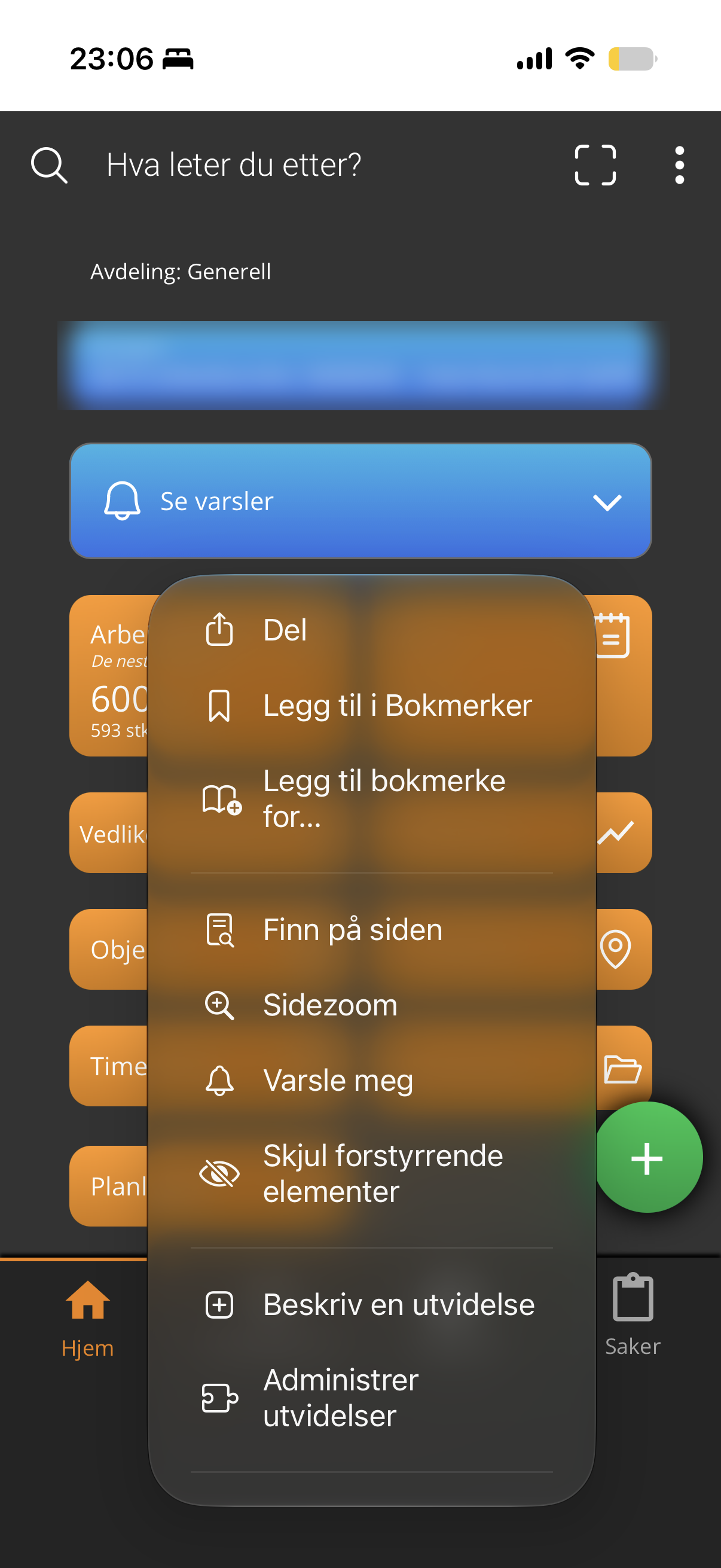
Choose “Add to Home Screen”#
Scroll down the share sheet. At the top you’ll see the page is called Carrotz Mobile.
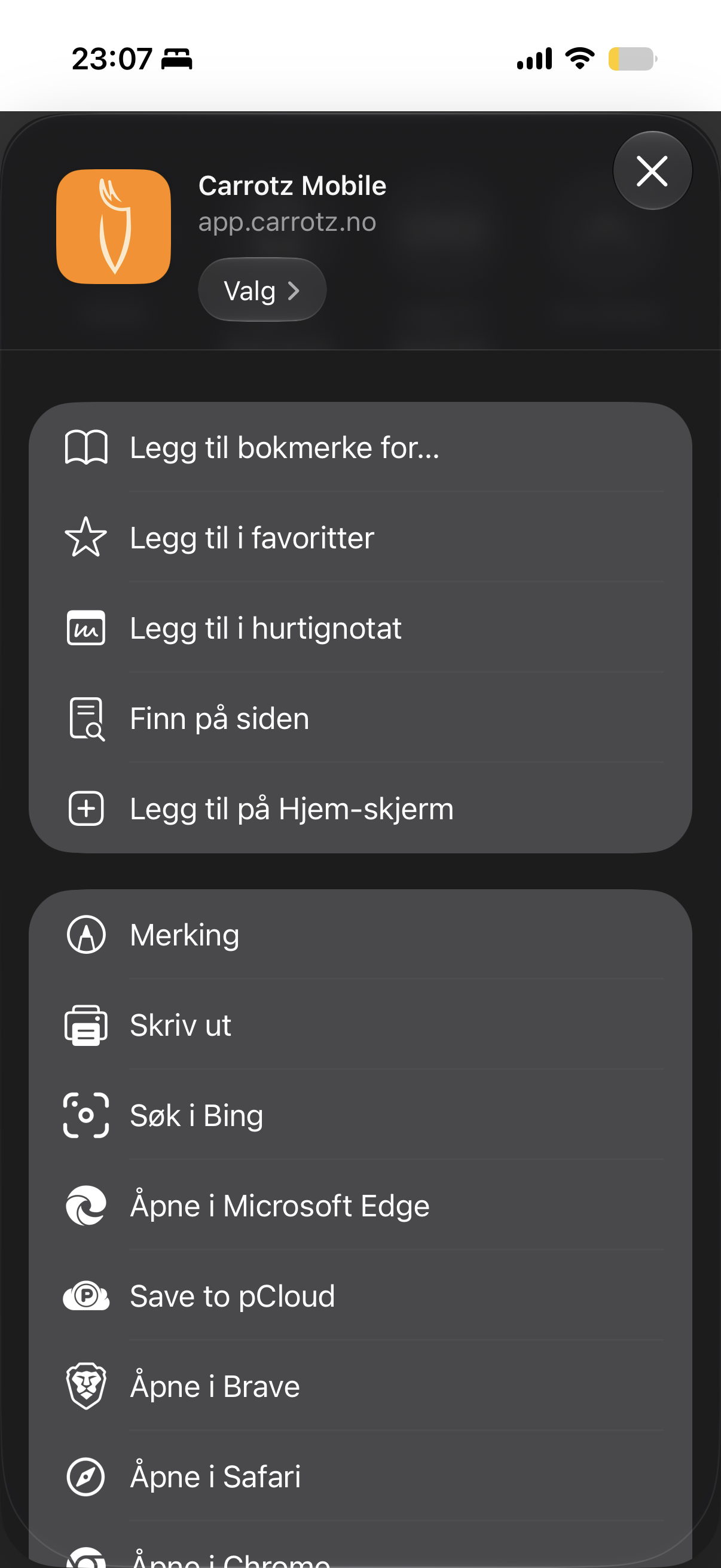
Check that “Open as web app” is on#
A confirmation screen appears with the name Carrotz Mobile and the address. Make sure the “Open as web app” switch is on — that is what makes the app open full screen without an address bar.
Tap Add in the top right.
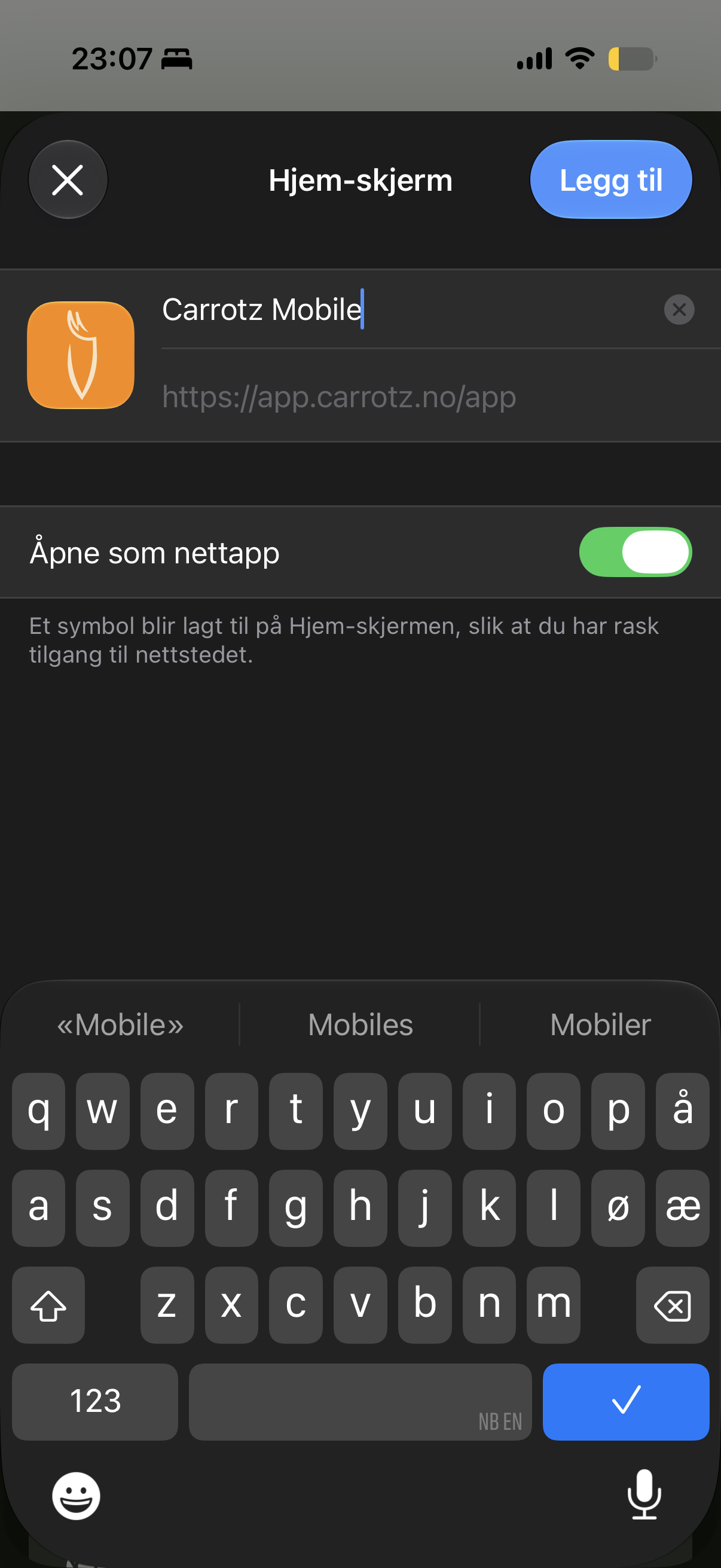
Done#
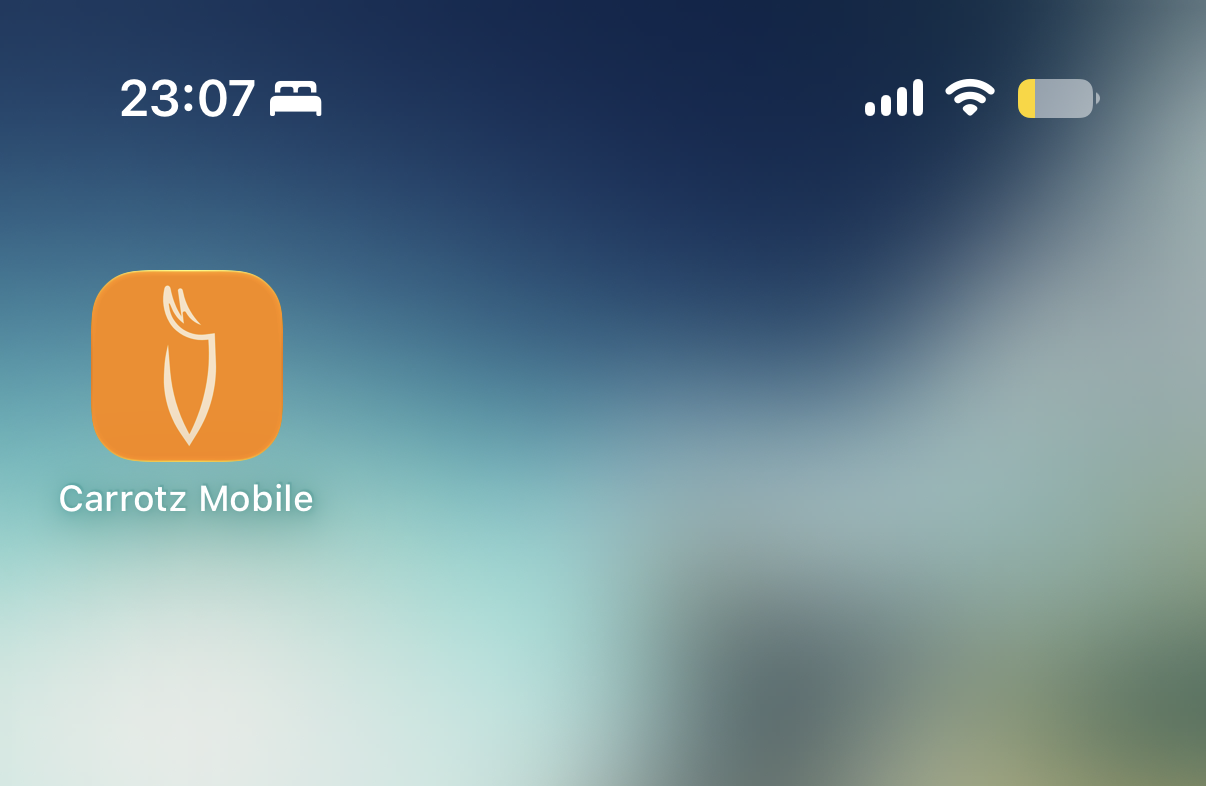
The icon is now on your home screen.
Android (Chrome)#
Open app.carrotz.no#
Same address — you are forwarded to the mobile version.
Open the menu#
Tap the three dots in the top right.
Choose “Install app”#
The option may also be called “Add to Home screen”, depending on your Android and Chrome version.
docs/static/img/kom-i-gang/pwa-installer-android.pngConfirm#
Tap Install or Add. The icon appears on your home screen.
Afterwards#
Start Carrotz from the icon on your home screen, not via the browser. That way the app opens full screen without an address bar, and behaves like an ordinary app.
You stay signed in between sessions — no need to log in every time.
Common questions#
I can’t find “Add to Home Screen”. On iPhone it lives in the share sheet, not directly in the Safari menu — tap the menu button in the address bar, then Share, and scroll down. Also check that you are using Safari on iOS or Chrome on Android; the option isn’t available in every browser.
The app opens with an address bar, like an ordinary web page. Then “Open as web app” was off when you added it. Delete the icon and add it again with the switch on.
I ended up on the desktop version on my phone. This can happen if the browser is set to “request desktop site”. Turn it off and reload, or go directly to app.carrotz.no/app.
Do I have to reinstall when Carrotz is updated? No. The app fetches the latest version itself.
Can I use Carrotz without installing it? Yes — you can use app.carrotz.no/app straight in the browser. But installed it is easier to reach, and you get full screen.
What you do in the app versus on a computer#
See Desktop and mobile for what belongs where. In short: carrying out work in the app, setup on a computer.