Creating a one-off job#
A one-off job is a work order you create yourself, for something to be done once — not something coming from a maintenance plan.
Typically you’re out somewhere and notice something: a part needs replacing, something needs tightening, a verbal request needs to become a job. You create it where you stand, on your phone.
How to do it in the app#
Tap + at the bottom#
The green + sits in the bottom right, available from anywhere in the app. You get three choices:
| Choice | When to use it |
|---|---|
| Create work order | The job will be done later, or by someone else |
| Create + complete work order | You’ve already done the job and just need to document it |
| Create case | Something is wrong and needs following up |
Choose Create work order.
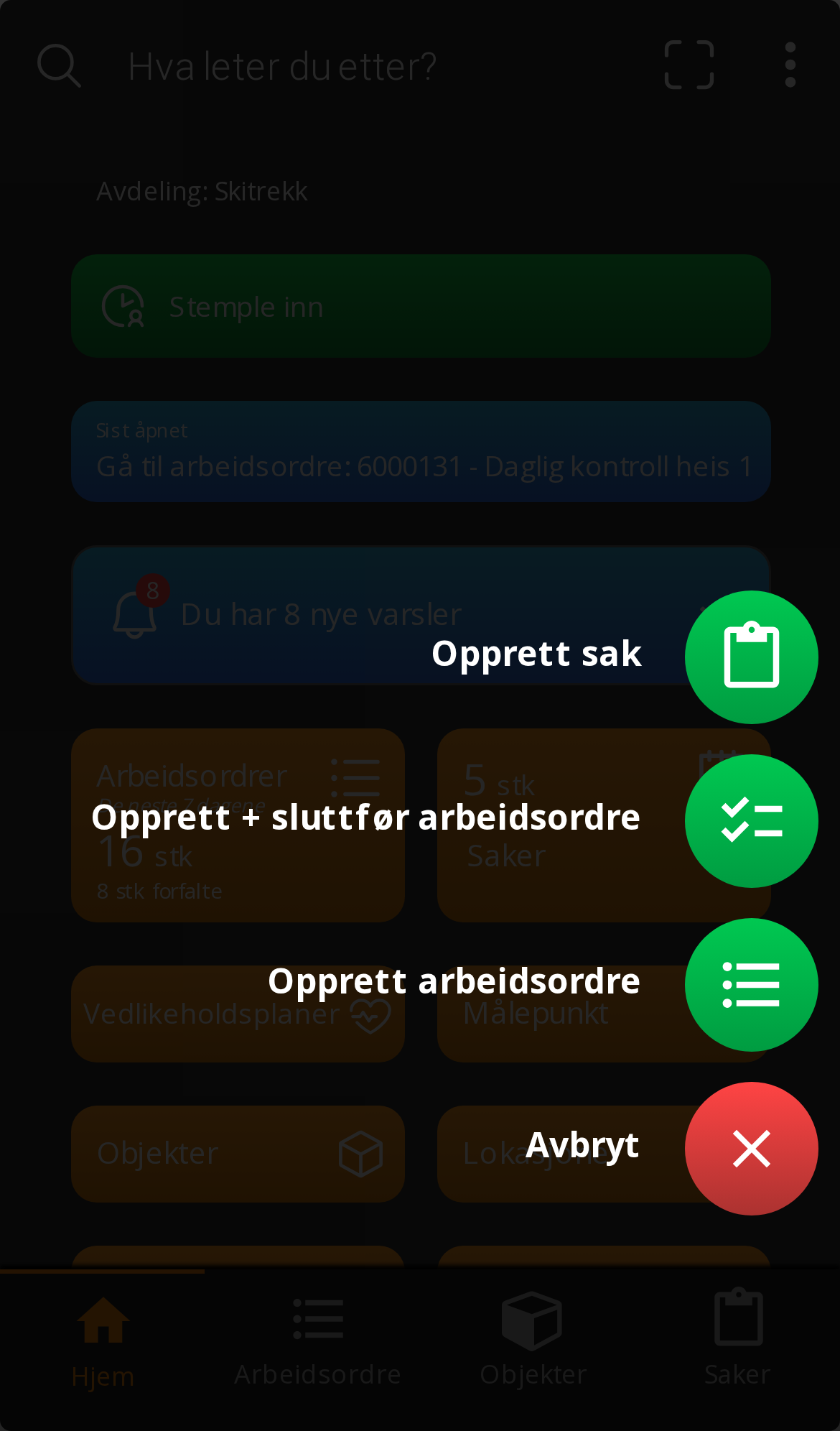
“Create + complete” is made for jobs you do on the spot. You tightened a bolt, replaced a fuse, cleared a snowdrift — this saves you creating a work order only to open it and complete it in two steps. The work is documented in the history just the same.
Describe the job#
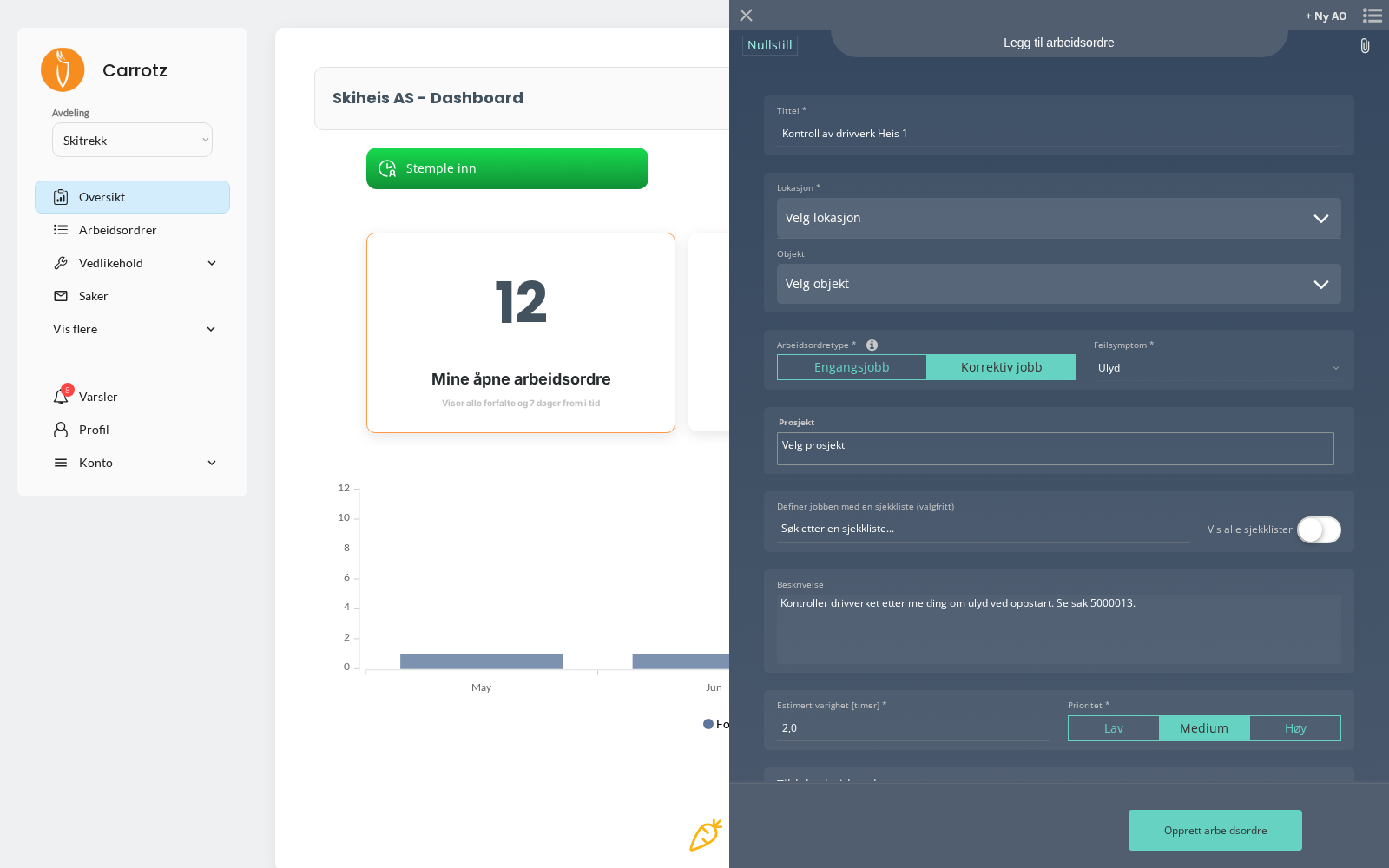
- Title — short and concrete
- Description — what needs doing, and why
- Location and object — where and what it concerns
Classify it#
- Work type — why the job exists: corrective, preventive, internal control, condition check or one-off job
- Fault symptom — what you actually observed: abnormal function, deformation, unusual noise, leak or unusual smell
Set the parameters#
- Estimated duration in hours
- Priority and deadline
- Discipline — which trade should see the job
- Checklist — optional, if the job should follow fixed points
- Requires JSA? — yes if the risk must be assessed before the job can start
Save#
The work order appears in the list and with whoever is to carry it out.
Fault symptom is worth filling in accurately. It is this field that makes patterns visible later — for example that “unusual noise” recurs on the same object three times in six months.
Discipline or a named person?#
When you assign the job, you choose a discipline. Everyone in that discipline can then see the work order.
You can additionally assign and notify individual users. They then get a message and direct access.
Rule of thumb: set the discipline so the right trade finds the job, and add names only when a specific person is actually going to do it.
Well filled in versus poorly filled in#
You’re outside, it’s windy, and it’s tempting to write “fix pump”. The difference shows up six months later, when someone needs to work out what was done.
| Weak | Good | |
|---|---|---|
| Title | “Fault on pump” | “Pump P-102: leak at the gland” |
| Description | “Needs fixing” | “Drip from gland, approx. 200 ml/hour. Spotted during rounds on 14 March.” |
| Object | (empty) | P-102 Feed pump |
| Location | “The site” | Site 1 > Building A > Plant room |
Always tie the job to an object and a location. That is what puts the work in the right history — and history on the object is what you yourself will need next time the same equipment fails.
One-off job or deviation?#
Not always obvious. A simple rule of thumb:
- Does something need doing? → Create a work order
- Has something happened, or is something wrong that needs following up? → Record a case/deviation
If the answer is both — something is wrong and something must be done about it — record the deviation first. That documents the background, and you can create the work order from the case so the two are linked.
“One-off job” is also a work type in its own right. If the job is a standalone task outside the plan, choose it. If it’s corrective — something is broken — choose Corrective instead, even if the job is only done once. The work type explains why the job exists, not how often it recurs.
Completion rules for one-off jobs are set by the administrator, the same way as for planned maintenance. See Carrying out work orders.
On desktop#
If you create from a computer instead, + sits in the top right of Overview, or in the work order list. The form is the same — just with more room.