Finding work orders#
A work order (WO) is the job to be done. Before you can carry it out, you have to find it.
In the app#
Tap Work orders in the bottom menu. The list is already sorted for you — grouped by urgency:
- Overdue (with a count)
- Due today
- Further ahead
You don’t need to sort or filter yourself. What’s urgent sits at the top.
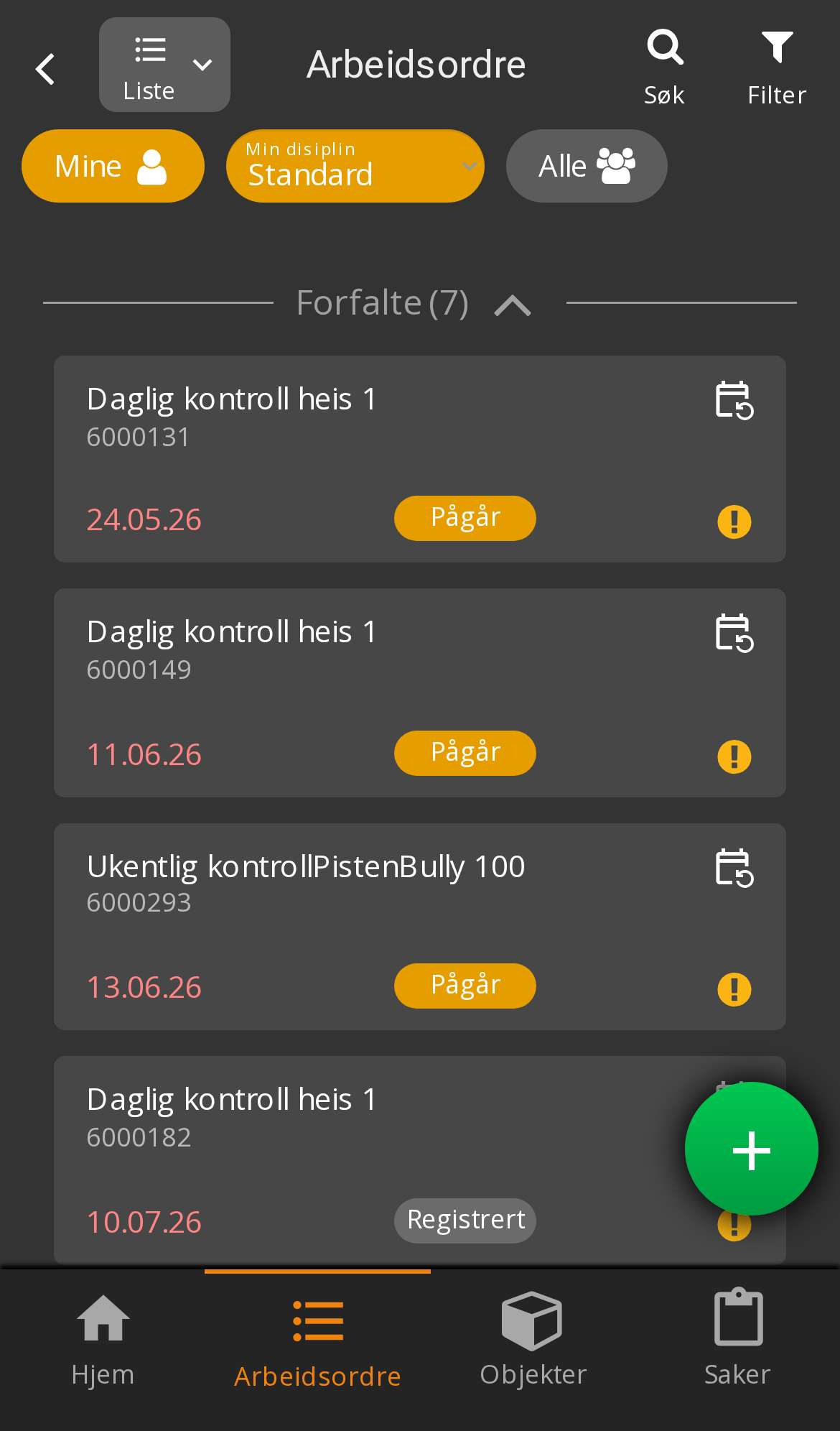
Each row shows the title, work order number, deadline and status. Tap the row to open the job full screen.
If you just want to get back to the job you were on, use “Last opened” on the home screen instead of searching the list.
On desktop#
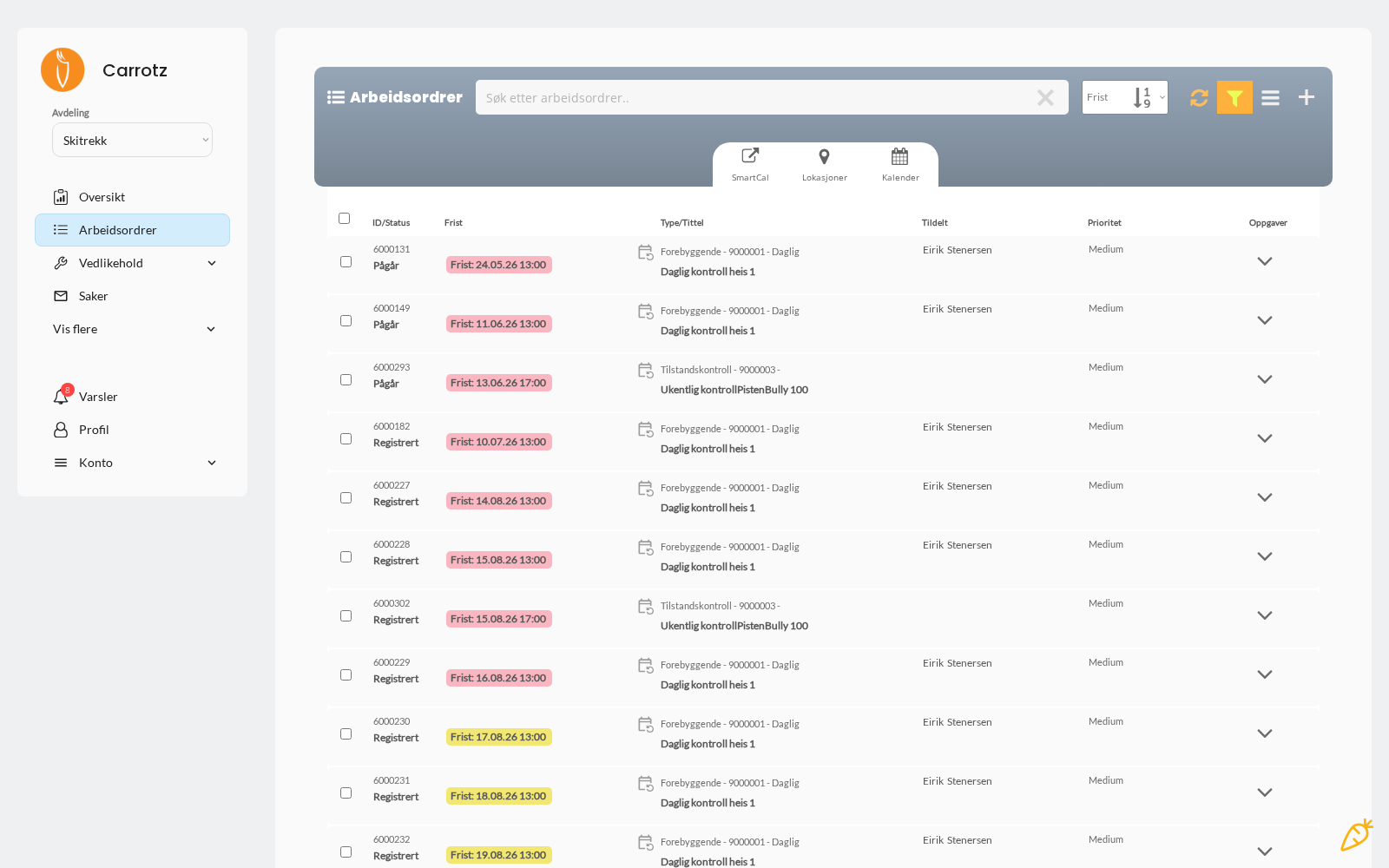
On a computer you’ll find the same under Work orders — but as a table with columns for ID/Status, Deadline, Type/Title, Assigned, Priority and Tasks. Here you can also sort, search and switch to calendar view or location view.
How work orders come about#
It helps to know where the job came from — it says something about what’s expected of you:
- Created manually — someone requested the job. Read the description for what to do.
- From a maintenance plan — planned maintenance that Carrotz created automatically. Usually has a checklist.
- From a case/deviation — something was reported as faulty, and now it’s to be fixed. See the linked case for background.
- From a meter reading — a measured value passed a threshold and triggered work.
Work type — why the job exists#
The work type explains why the work order exists. It’s worth checking before you start, because it tells you something about what’s expected.
| Work type | What it means |
|---|---|
| Preventive | Planned maintenance meant to stop faults occurring |
| Corrective | Something is broken and needs fixing |
| Internal control | Checking that routines and requirements are followed |
| Condition check | Assessing the condition of the equipment |
| One-off job | A standalone task outside the plan |
Work type is also used as a filter in reports — that is how the organisation separates planned work from firefighting.
Statuses#
A work order normally has four statuses:
Registered  →  In progress  →  Completed
                    ↓
Cancelled| Status | Meaning |
|---|---|
| Registered | Created, but not started |
| In progress | Work is under way |
| Completed | The work is done and closed |
| Cancelled | The work order will not be carried out |
If your organisation uses approvals#
Some companies have enabled approval of completed work orders. Three more statuses then apply:
| Status | Meaning |
|---|---|
| Awaiting approval | Completed and waiting for someone to approve |
| Approved | Approved and finally finished |
| Rejected | Sent back — something is missing |
If a work order is rejected, it is automatically set back to In progress and the person responsible is notified. So you don’t have to go looking for it — it reappears as an active job.
What a work order contains#
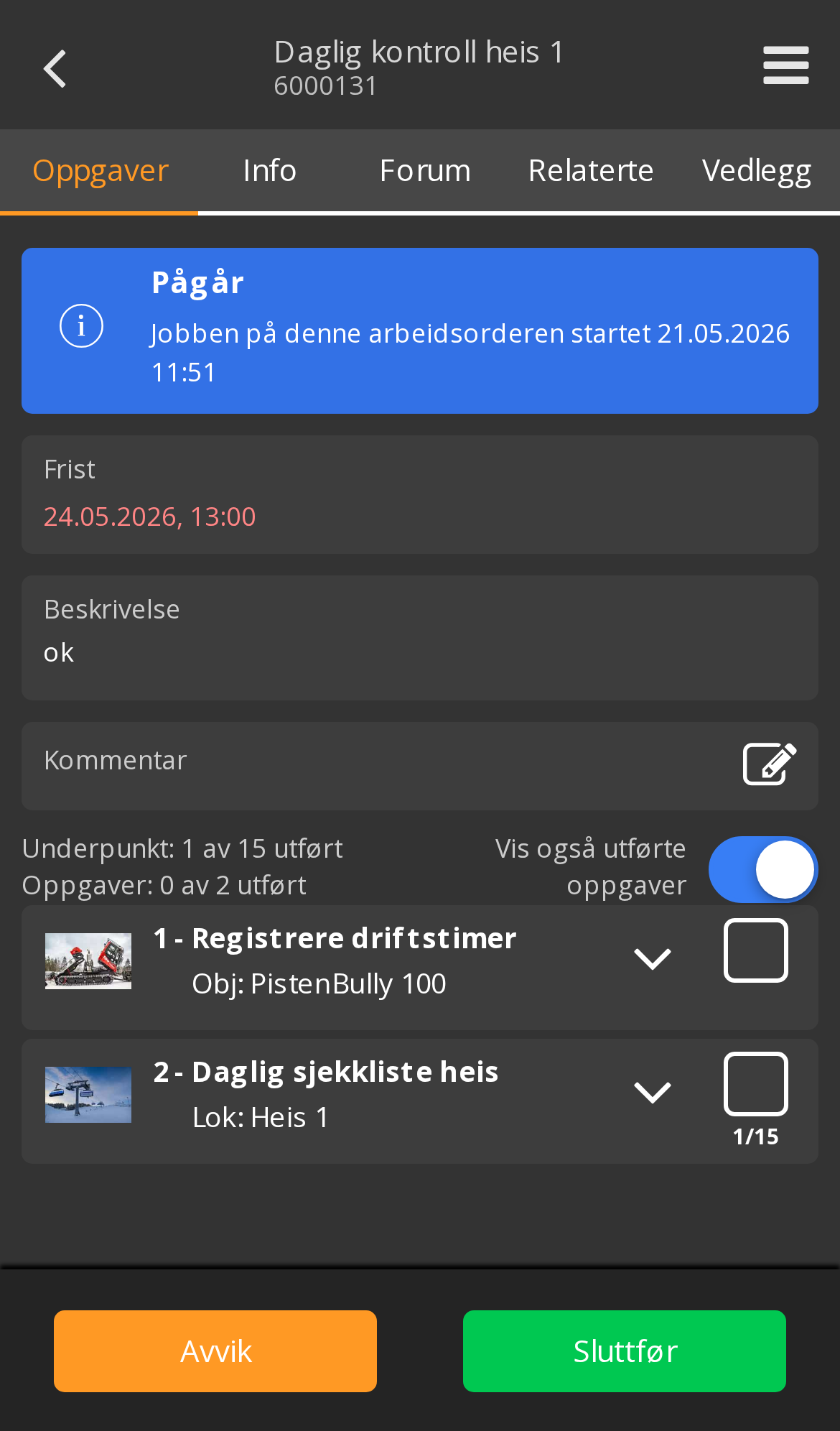
Opening a WO, you’ll normally find:
- Title and description
- Location and object — where and what
- Work type, and possibly a fault symptom — why the job exists
- Deadline and priority
- Assigned discipline, and possibly named users
- The tasks to be carried out — and any sub-items under each
- Any JSA requirement
If you can’t find a work order you expect, you are most likely in the wrong department. Otherwise it may be assigned to a discipline you aren’t linked to, or not yet created by the maintenance plan.
If you work across trades, your administrator can link you to up to four disciplines in addition to your main one, so you see their work too. See Access and roles.
Once you’ve found the job, move on to Carrying out work orders.