Home screen — your overview#
The home screen is your starting point. It gives a quick overview of what matters right now, so you know what’s urgent before you head out.
As a field user you work mostly in the app. This page describes the app first, and mentions the desktop version where it differs.
In the app#
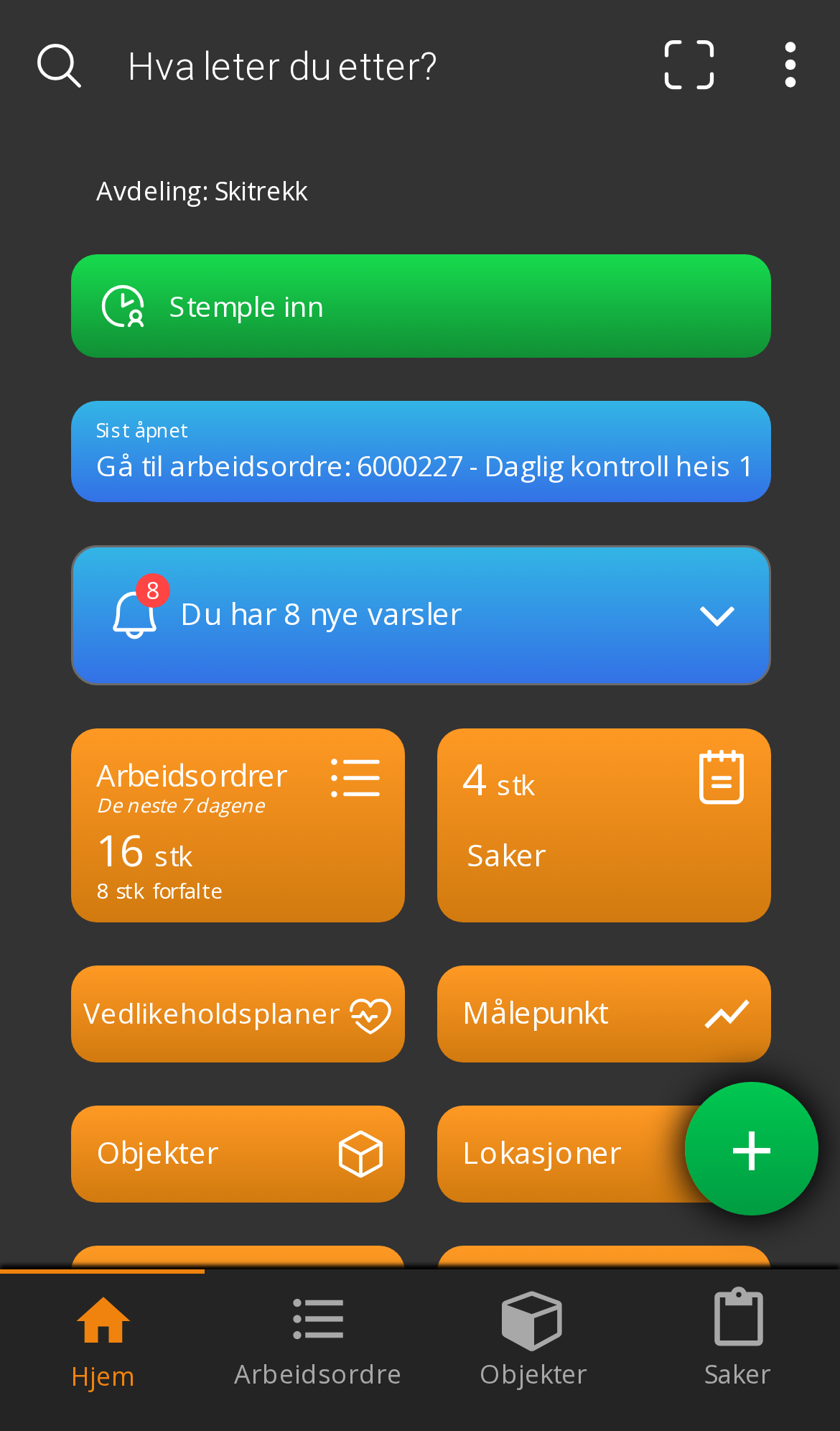
You see:
- The department you’re in — and can switch if you have access to more than one
- Last opened — a shortcut straight back to the work order you were on
- Notifications with an unread count
- Counters: work orders for the next 7 days, overdue items, and cases
- Shortcuts to Work orders, Cases, Maintenance plans, Measuring points, Objects, Locations, Time registration, Documents and Inventory
At the bottom sits a fixed menu: Home · Work orders · Objects · Cases · +
“Last opened” is the fastest route back to the job you’re on. If you’re interrupted mid-checklist, you don’t have to search for it again.
Creating something quickly#
The + button lets you create directly:
- A new work order
- A new case or deviation
- Time registration
That saves navigating through menus when you just need to record one thing.
On desktop#
On a computer the home screen is called Overview. It shows the same content in a different layout:
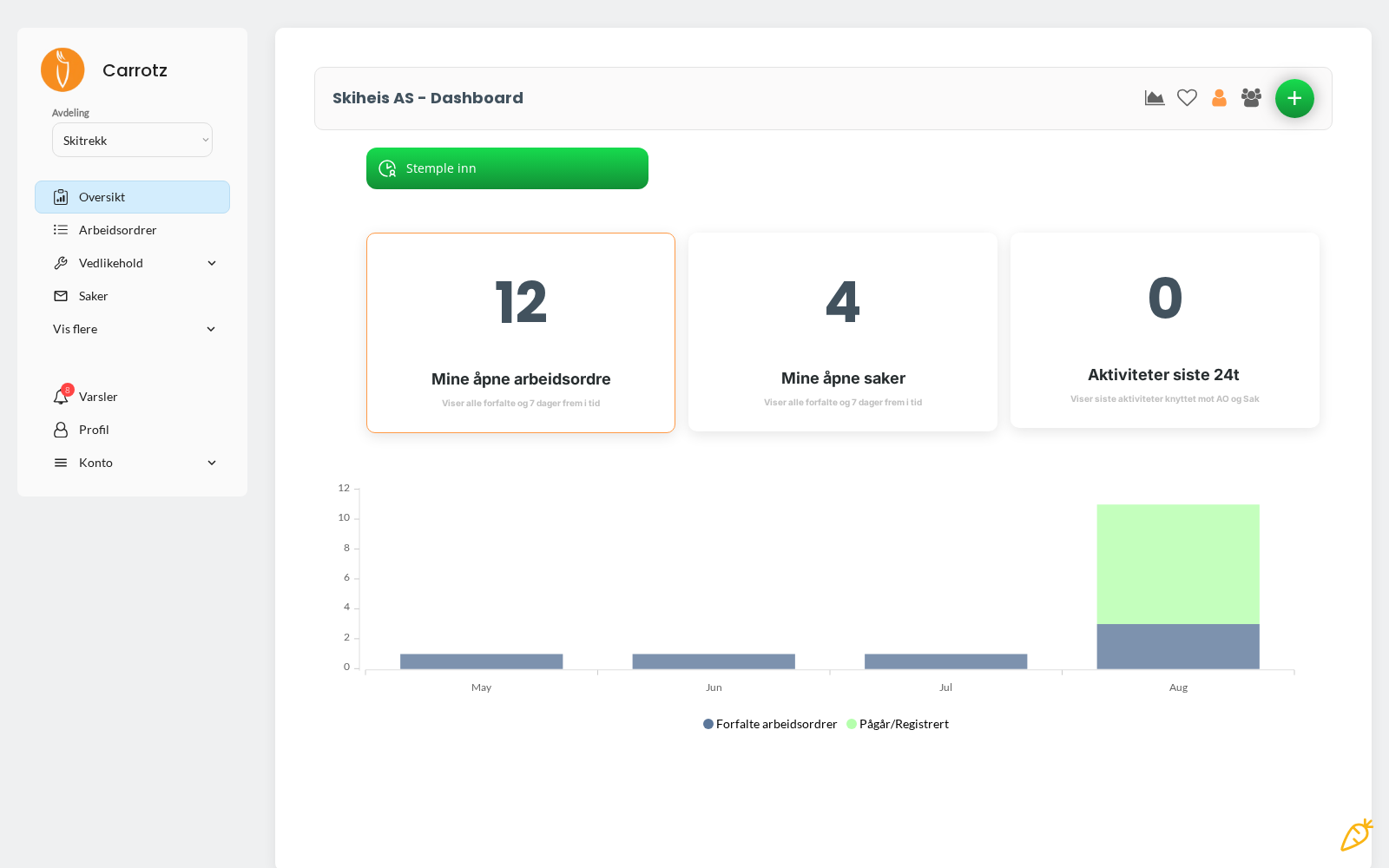
- My open work orders — overdue and the next 7 days
- My open cases
- Activity in the last 24 hours
- A chart of overdue work orders and what’s in progress
How to use it in practice#
Three questions, in this order:
- What’s urgent? — look at overdue and imminent deadlines
- What’s mine? — see what’s assigned to you
- What needs documenting? — see what’s awaiting approval or has been rejected
If a work order has been rejected, someone has sent it back to you. It is automatically set back to In progress, and you get a notification. Open it and look for the comment explaining what’s missing.
Not every organisation uses approvals. If you don’t see these statuses, the feature isn’t switched on for you. See Statuses.