Maintenance plans#
Maintenance plans are the automation in Carrotz: they make work orders create themselves, according to the rules you set. This is where the system starts working for you.
Three ways to trigger work#
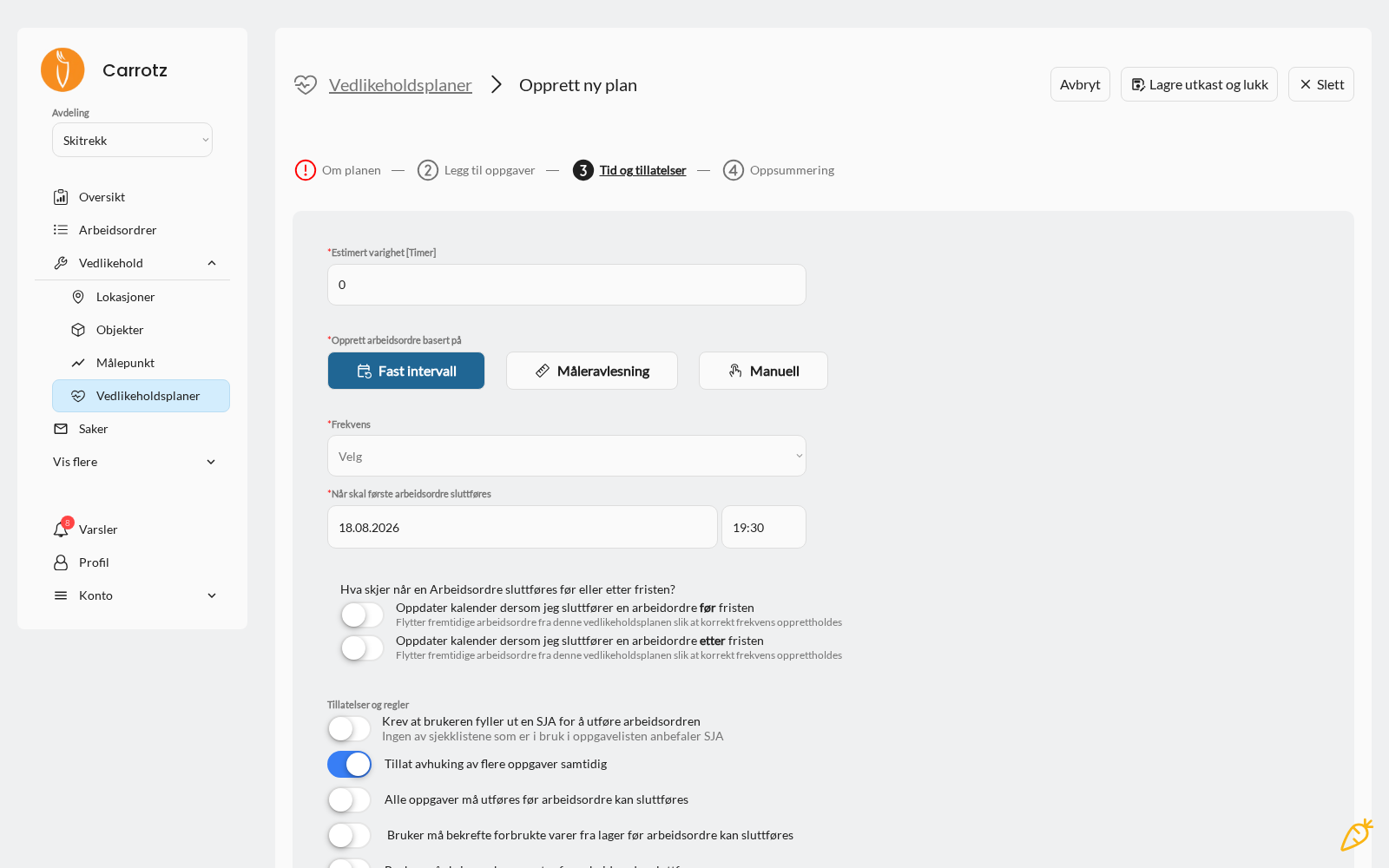
In the form the choices are called Fixed interval, Meter reading and Manual. The last one doesn’t create work orders by itself — the plan sits ready, and the work order is created when someone asks for it. Useful for work that recurs, but without a fixed rhythm.
Meter-driven maintenance is the basis for more condition-based maintenance — you do the work when the equipment needs it, not when the calendar says so.
Three tabs on the same page#
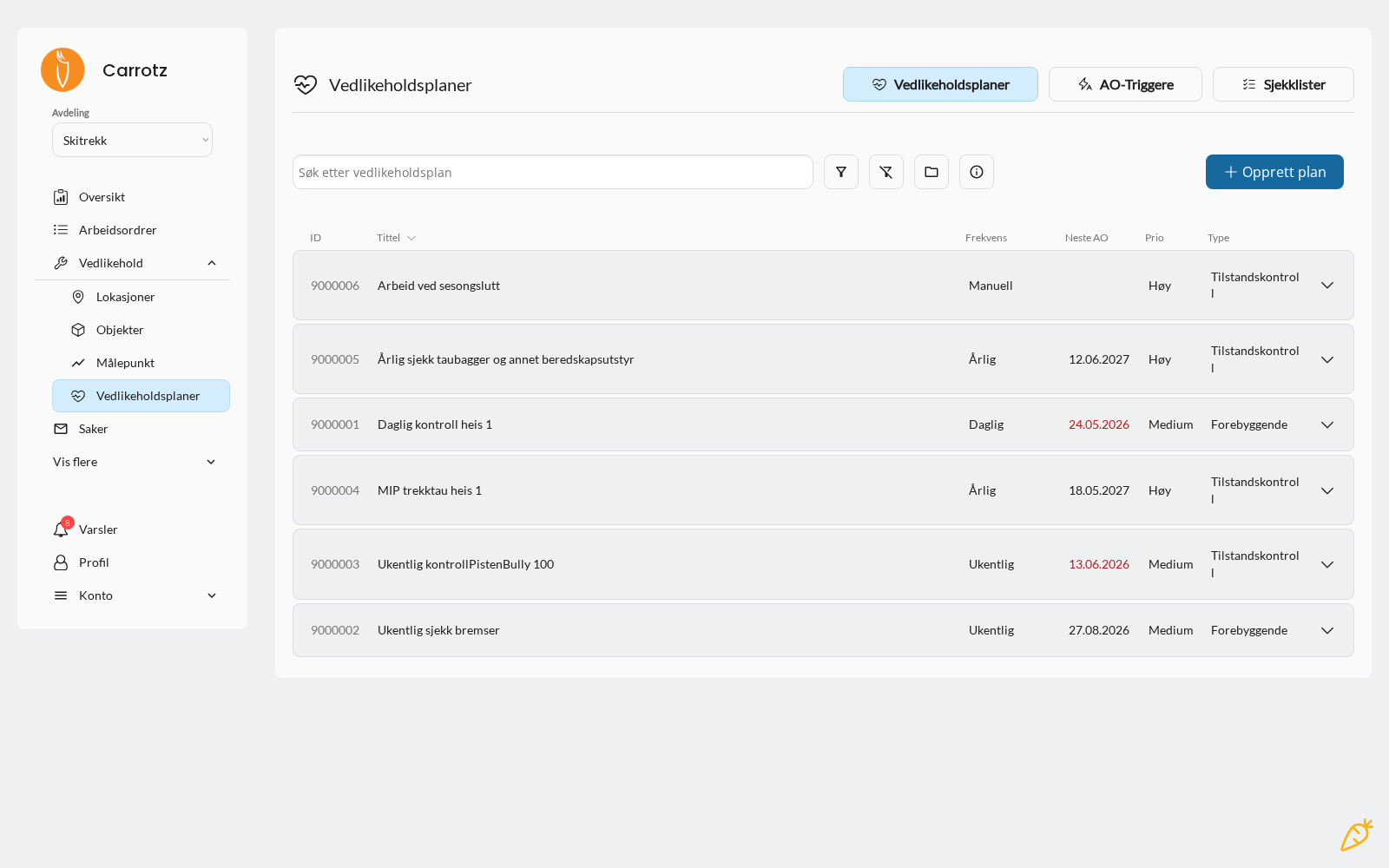
The maintenance page is split into three:
| Tab | What it contains |
|---|---|
| Maintenance plans | The plans themselves — frequency, next work order, priority and type |
| WO triggers | Rules that trigger work orders without being a schedule |
| Checklists | The checklists the plans use — see Checklists |
Task type#
Every task in the plan has a task type. It determines what the field user meets when the work order is created:
| Type | What it contains |
|---|---|
| Simple task | Only a title and description. No checklist and no sub-items |
| Checklist | A list of points to be worked through one by one |
| Meter reading | Recording a value on a measuring point |
All three are tied to one object or one location. It is this link that puts the work in the right history — and it’s why one work order can span several objects, by having several tasks.
Reusable checklist or not#
If you choose checklist, you must decide whether it should be reusable:
| Choice | When it fits |
|---|---|
| Reusable | The points will be used in several plans. The checklist goes into the shared library under the Checklists tab, and can be picked by other plans later |
| Not reusable | The points apply only to this plan. That keeps the library from filling up with lists nobody else will use |
Reusable is right when several objects of the same kind are checked identically — then you change the points in one place and hit every plan. But remember it cuts both ways: the In use column in the checklist overview shows how many plans an edit will affect. Check it before editing.
If the points are specific to this plan, choose not reusable. A library full of one-off lists makes it harder to find the lists that are genuinely meant to be shared.
What you link the plan to#
- Locations — where the work is to be done
- Objects — which equipment it concerns
- Checklists — which points are to be reviewed
- Users or disciplines — who is to carry it out
What else you specify#
- Priority — how important the work is
- Work type — why the work exists. Planned maintenance is usually preventive
- Estimated time — the basis for capacity planning
- Project — if the work belongs to a project
- When the work is to be carried out — the frequency or the meter threshold
- Approver — who approves, if your organisation uses approvals
The form is a four-step wizard#
| Step | What you do |
|---|---|
| 1. About the plan | Title, description, project, work type, priority, assignment and attachments |
| 2. Add tasks | The tasks the plan will produce, with type and links |
| 3. Time and permissions | Frequency, first deadline, and the rules below |
| 4. Summary | A check before the plan is activated |
You can save a draft and close along the way. The plan isn’t created as active until you finish — a draft generates no work orders.
The work types for a plan are preventive, condition check and internal control. Corrective and one-off job exist only on manually created work orders — planned maintenance is by definition not corrective.
What happens when a job is completed early or late#
Two switches control whether the calendar adjusts itself:
- Completed before the deadline — move future work orders so the frequency is maintained
- Completed after the deadline — the same, in the other direction
If they’re off, future jobs stay on their original dates regardless of when the previous one was done.
Turn them on for equipment where the interval between jobs is what matters — lubrication every 30 days should be 30 days from the last lubrication, not from a date set last year. Leave them off when the job is tied to the calendar, like an annual inspection that should happen in March regardless.
Permissions and rules#
Under the same step you set what is required before a work order can be completed:
| Rule | What it does |
|---|---|
| Require the user to complete a JSA | The work order cannot be started without a JSA |
| Allow ticking off several tasks at once | The field user can sign off several tasks in one operation instead of one by one |
| All tasks must be completed | Blocks completion until everything is handled |
| User must confirm consumed inventory | Requires inventory usage (inventory module only) |
| User must write a comment | Requires documentation in text |
| User must upload an attachment | Requires a photo or file |
“Allow ticking off several tasks at once” is worth considering deliberately. It saves time on long lists, but also makes it easier to sign off something you haven’t looked at. Turn it on for routine checks, off for critical equipment.
The rules work at two levels:
| Level | What it controls |
|---|---|
| Organisation level | Defaults for all new maintenance plans, and the rules that apply to ad-hoc one-off jobs |
| Per maintenance plan | Overrides the default for this particular plan |
That means you can set a sensible default for the whole organisation and still demand more of the critical jobs.
Be careful about requiring too much by default. Rules that don’t make sense for the job get satisfied pro forma — an empty comment written to get past the block is worse than no comment, because it looks like documentation. Set strict requirements where they matter, and override per plan.
What the plan shows when you open it#
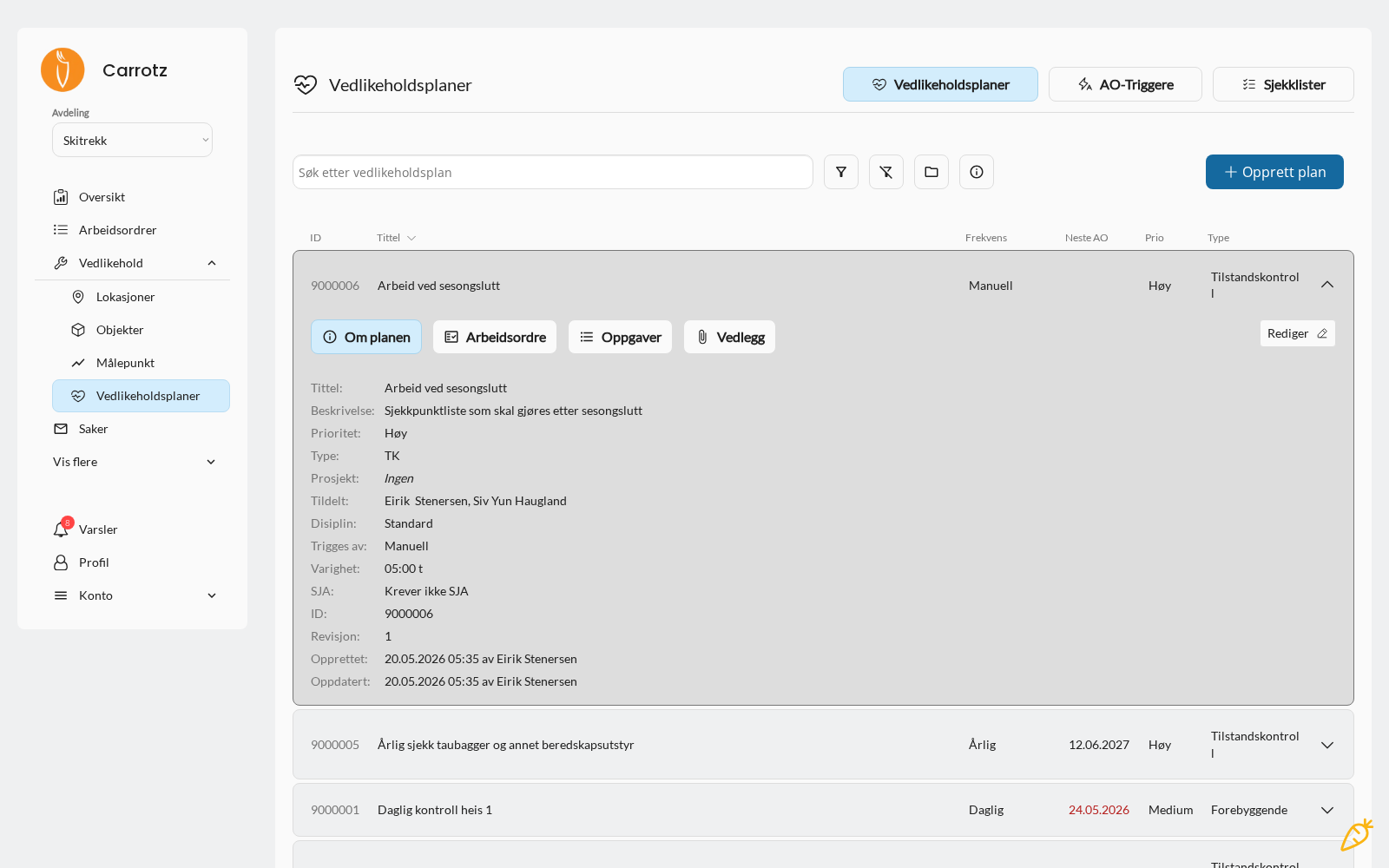
Opening a plan, you see the setup together: type, project, who it’s assigned to, discipline, what triggers it (for example Manual or an interval), estimated duration, and whether it requires a JSA.
The plan also has a revision number and shows who created and last updated it. That makes it traceable who changed a plan — useful when work orders suddenly generate differently than before.
How it fits together#
Maintenance plan
      │
      │  (frequency or meter threshold reached)
      ▼
Work order created automatically
      │
      ▼
Field user carries it out and documents
      │
      ▼
History on the object
Work, checklists, hours and documentation gather in the history — that is what makes maintenance traceable over time.
Setup advice#
Start with what’s critical. Don’t try to enter everything at once. Take the objects with the highest criticality first.
Set realistic intervals. Plans that generate more work than you can handle create a growing list of overdue jobs — and then “overdue” loses its meaning.
Link to a discipline where it makes sense. The work then lands with the right trade without manual distribution.
Consider meter-driven for equipment with variable use. A machine running 200 hours one month and 20 the next shouldn’t be on calendar-based servicing.
If the same job frequently uncovers the same deviation, the interval is probably too long. If the job never finds anything, it may be too short. The history is your feedback on whether the plan is set up correctly.
Next step: Measuring points and triggers.