Planning, projects and time registration#
The tools for planners, supervisors and project managers: distributing the work, following the projects and getting the hours recorded.
The Planner#
The Planner is used by supervisors and planners to distribute work. It sits as a shortcut on the app’s home screen.
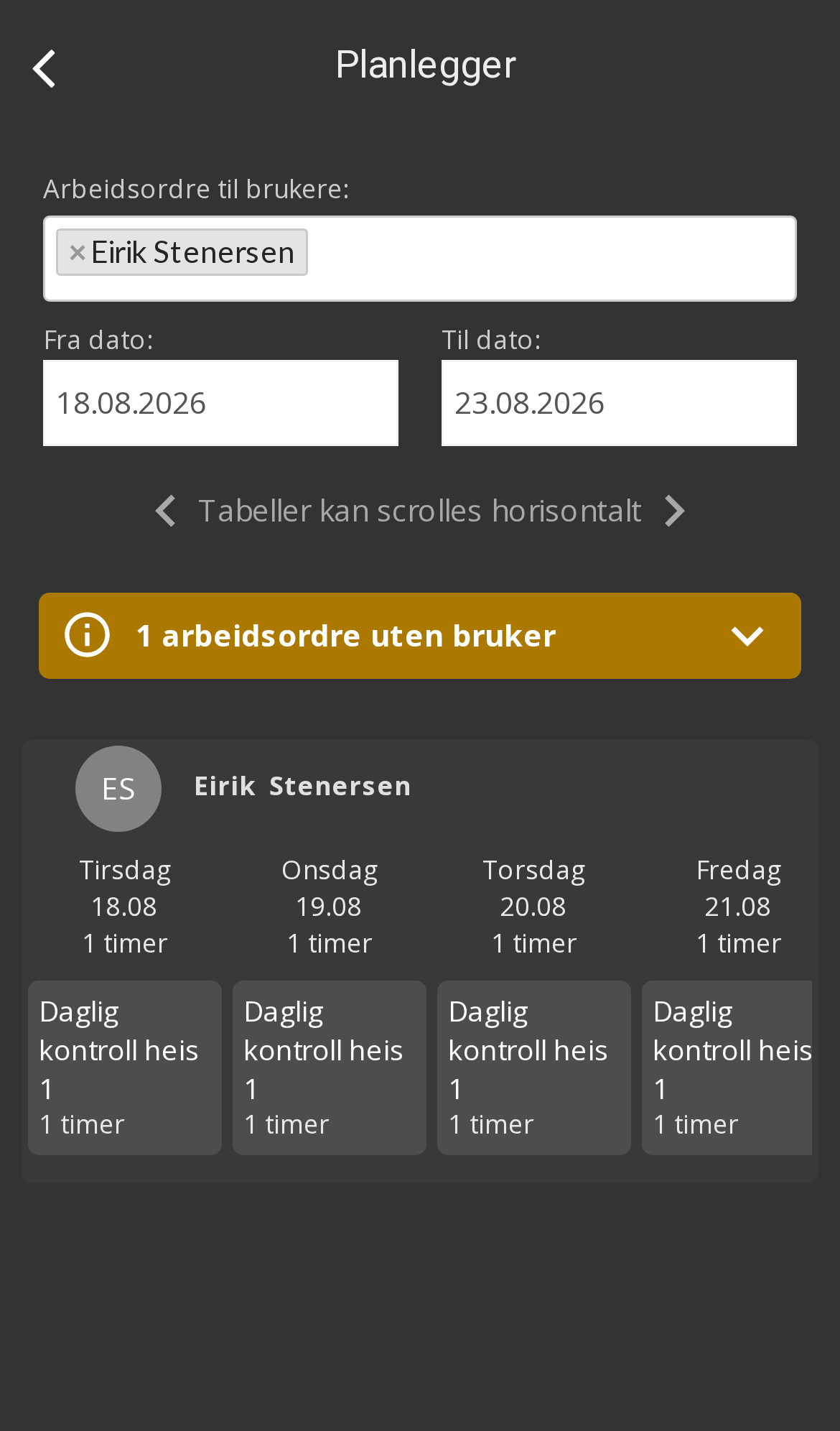
Here you see the work spread over time, and can move jobs between people and days. This is where you notice whether the workload is realistic — if one week is overfull and the next is empty, it’s visible immediately.
Two other views of work orders#
The work order list has two views in addition to the table:
| View | When it’s useful |
|---|---|
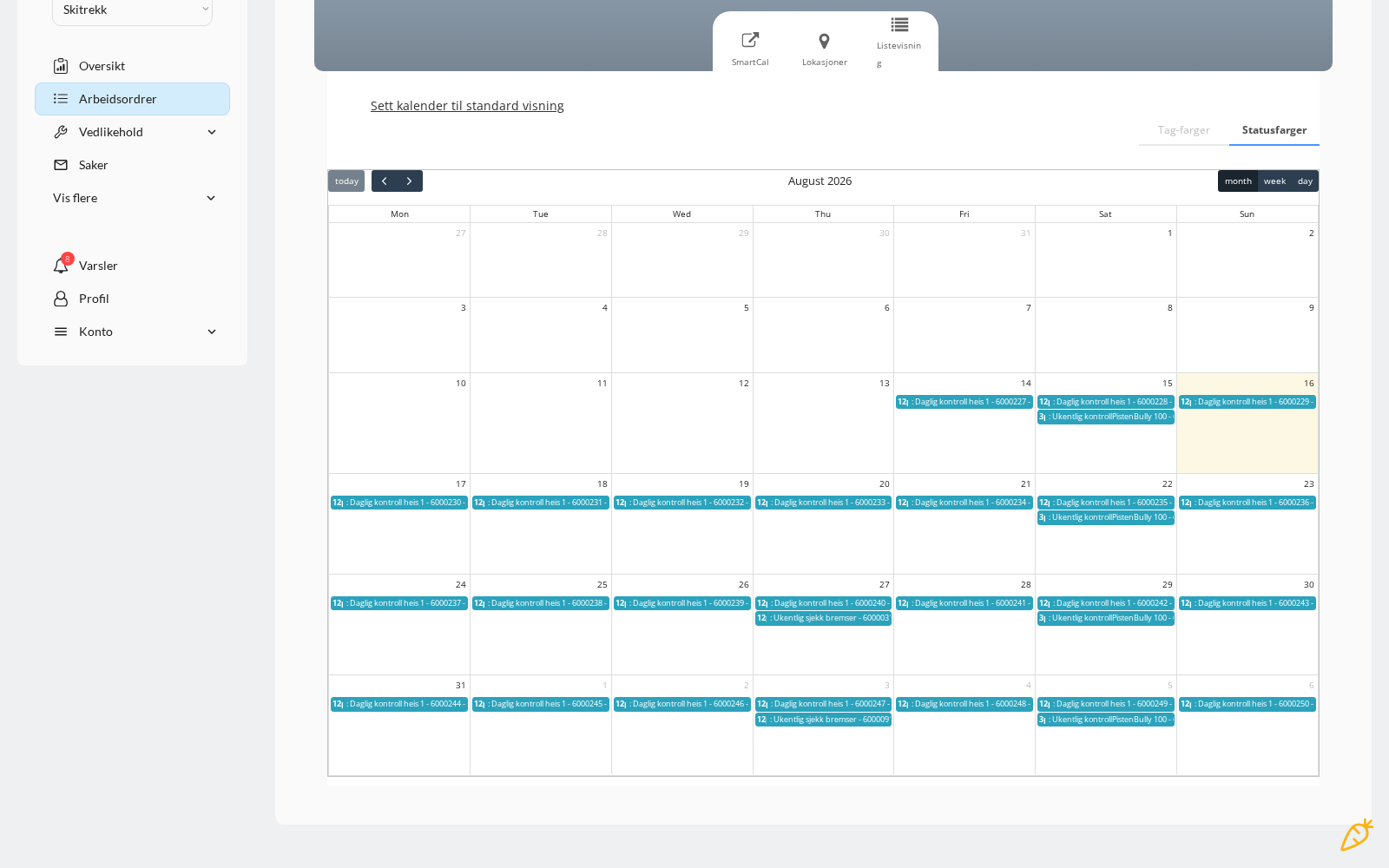
| Calendar | See work orders by month, week or day. Colours can be set by status or tag |
| Locations | See where the work is, rather than when |
The calendar view can be set as the default, so you land there when you open work orders.
Projects#
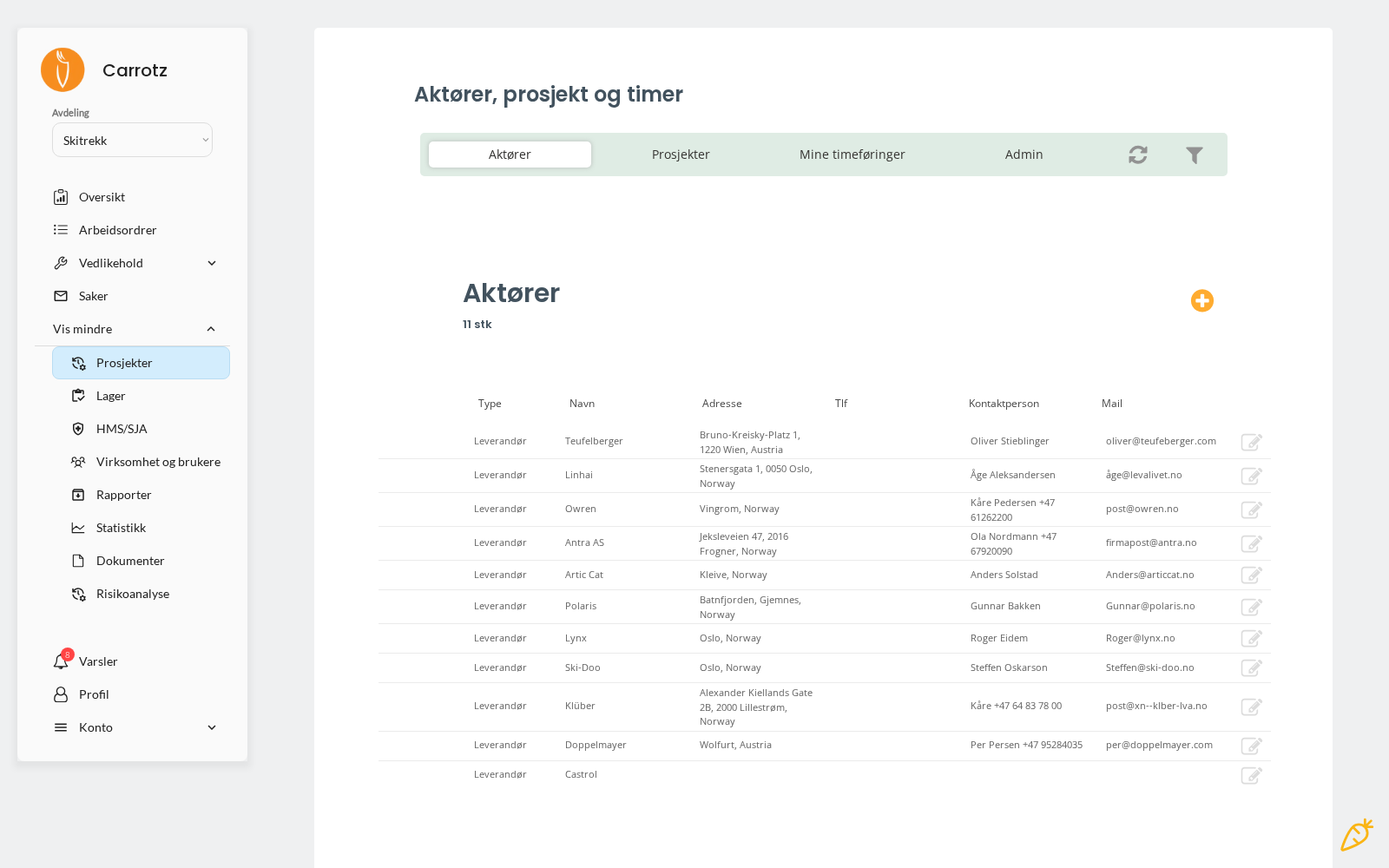
The module is called “Actors, projects and hours” and is used when the organisation wants to track projects, hours, costs and materials.
It is split into four tabs:
| Tab | Contents |
|---|---|
| Actors | Customers, suppliers and other external parties — with address, phone and contact person |
| Projects | The projects themselves, with hours, activities and costs |
| My time entries | Your own logged hours |
| Admin | Setup for the module |
Actors are the starting point: a project is linked to an actor, so work, hours and costs can be tracked per customer and form the basis for invoicing where that is used.
Time registration#
Hours can be recorded from several places, depending on what’s practical:
| From | When it suits |
|---|---|
| The home screen | Quick entry, without opening anything first |
| The project module | When logging several entries at once |
| Directly from the work order | While you’re in the job — the most accurate |
When logging time you choose:
- Project
- Date
- Activity
- Number of hours
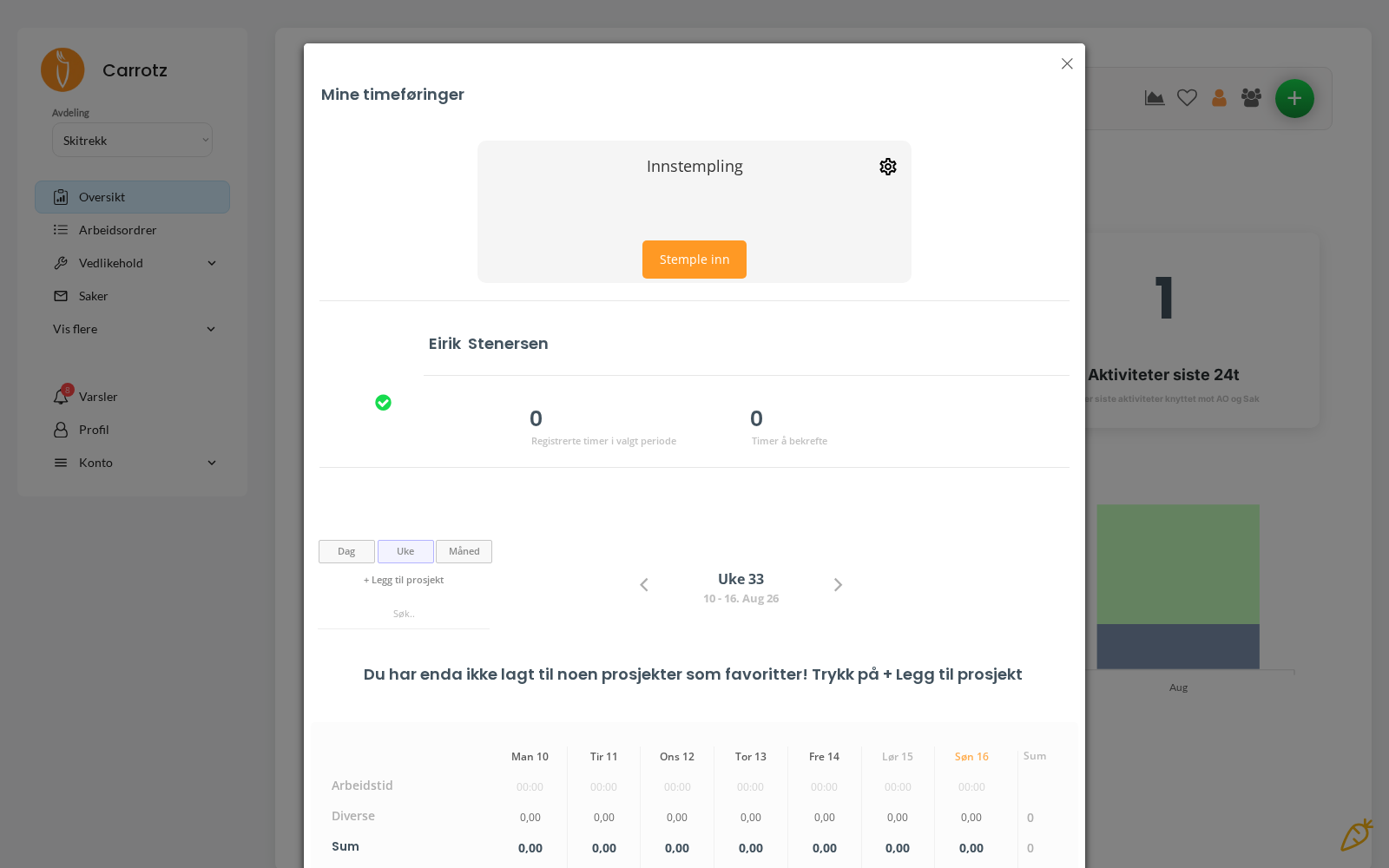
This forms the basis for project follow-up and invoicing where that is used.
Hours logged directly from the work order are the most accurate, because they are recorded while the job is happening and automatically connect to the work that was done. Hours logged at the end of the week are always an estimate.